
This article will show you how to change your licensed Software ID if it has changed for some reason or you bought a new device and want to transfer the license to it.
Please note that Software ID cannot be changed to your old one, this guide will show you how to change the ID in our system to your new one to be able to use your license again
Chaning the Software ID to a custom one is not possible! Software ID is the actual MAC on your Wired LAN interface.
How to change the Software ID:
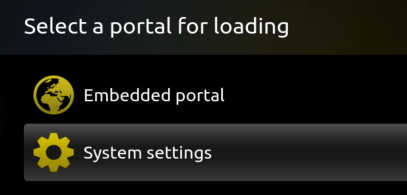
Start the app, press OK/Center or Arrow keys when you see "Loading Portal" and go to Settings.
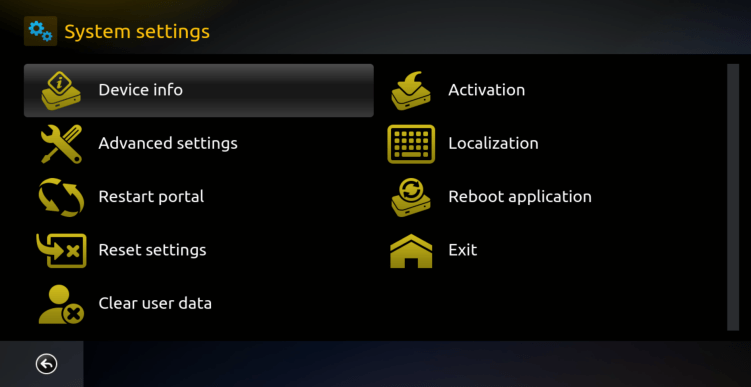
Then go to Device Info.
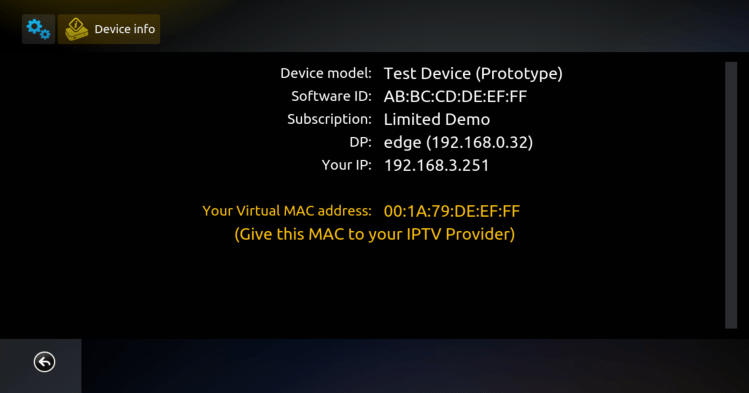
In Subscription it will say Limited Demo. Note the different Software ID (in this example: AB:BC:CD:DE:EF:FF)
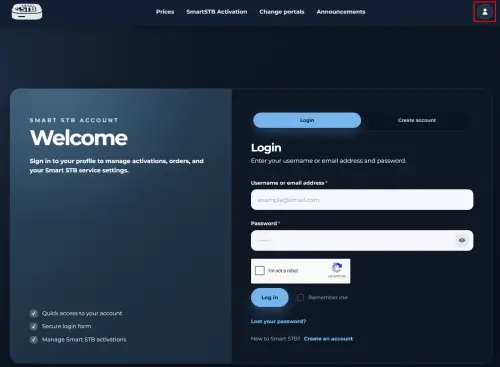
Step 1: You need to go to our site and locate and click on "My Account" icon and then login on our website if you are not logged
Step 2: Open my Subscriptions
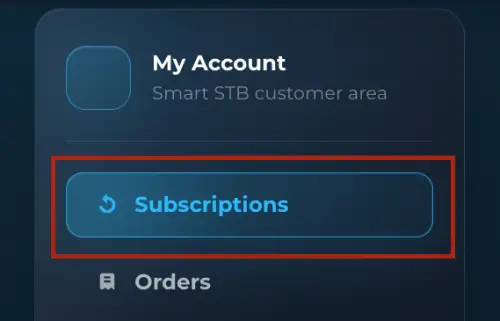
Step 3: Find the TV that went in Demo and click "View" button (look at the back of your TV to get the TV make and model):

(Example device, information on above picture is for demonstration purposes, please do NOT enter this on our app and site)
Click your subscription and locate transfer license option. You can choose from three options to transfer:
-
- Transfer to New Device;
- Transfer to a New Device and Copy vMAC*
- Transfer to the Same Device (and Copy vMAC)**.
Choose transfer license method that you desire and follow the instructions.
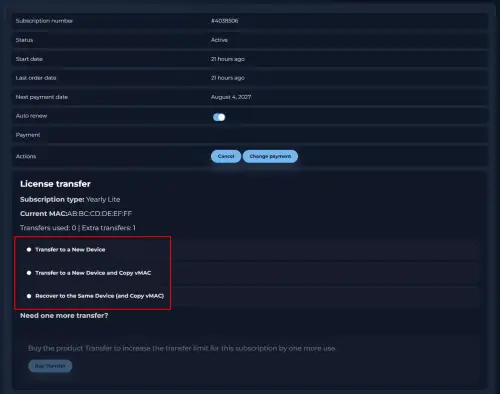
(Example software ID, information on above pictures is for demonstration purposes, please do not enter the software ID our website)
* Use this options if you are transferring your license to a new device, but you wish to keep your old Virtual MAC so you won't lose your subscription with your IPTV provider, otherwise please use the "Transfer to a New Device" to discard your old Virtual MAC and take the new one.
** Use this option if for some reason your device has been reset (e.g. it has its motherboard replaced and you got a new Software ID), by using this option you will keep your old Virtual MAC and the transfer won't be counted as such.
In case you are seeing a picture like this:
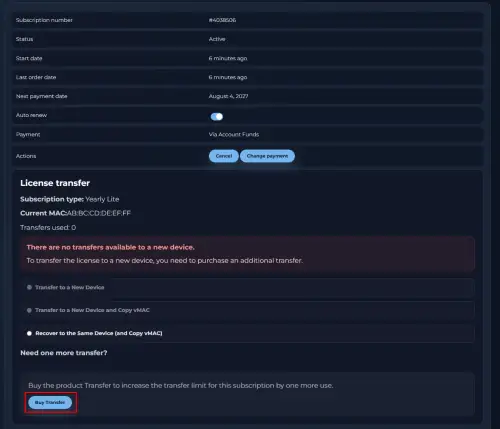
(Example software ID, information on above pictures is for demonstration purposes, please do not enter the software ID our website)
This means that you don't have available transfer to a new device and in order to transfer your license to a new device, you need to purchase an extra transfer by clicking on "Buy Transfer" button.
Once you click on "Buy an extra transfer", you will open the checkout page. On this page, you need to enter your billing address information and choose which payment method to use.
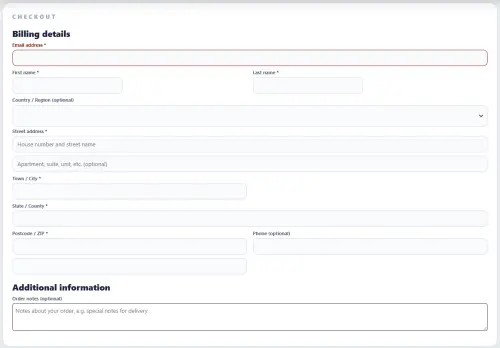
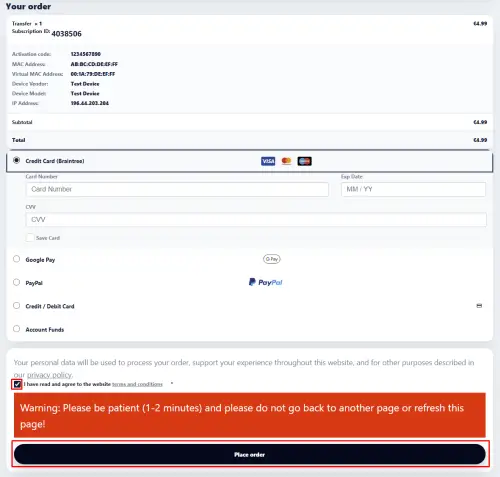
(Example, information on above pictures is for demonstration purposes, please do NOT enter the activation code on our app or the app's software ID on our website)
Once you select which payment method to use, you need to agree with the Terms and conditions and click on "Place order" button.
- If you choose "Transfer to a New Device" option, you need to enter a software ID in "Software ID" box or the activation code in the app's Activation page. Wait all information to load and you will see a picture like this:
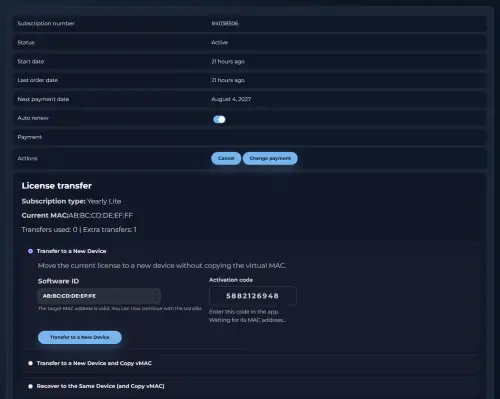
To complete the license transfer you need to click on "Transfer to a New Device" button.
(Example code, information on above pictures is for demonstration purposes, please do NOT enter the activation code on our app)
- If you choose "Transfer to a New Device and Copy vMAC*" option, you need to enter a software ID in "Software ID" box or the activation code in the app's Activation page. Wait all information to load and you will see a picture like this:
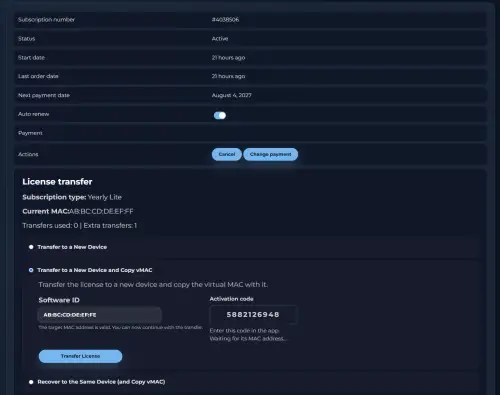
To complete the license transfer you need to click on "Transfer License" button.
(Example code, information on above pictures is for demonstration purposes, please do NOT enter the activation code on our app)
- If you choose "Transfer to the Same Device (and Copy vMAC**)", you need to enter a software ID in "Software ID" box or the activation code in the app's Activation page. Wait all information to load and you will see a picture like this:
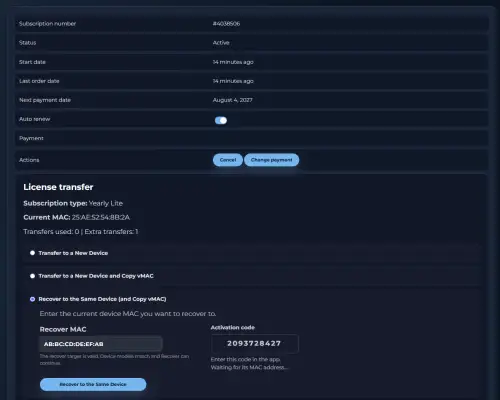
To complete the license transfer you need to click on "Recover to the Same Device" button.
(Example code, information on above pictures is for demonstration purposes, please do NOT enter the activation code on our app)