How to upgrade the app with paid license:
Important note: if you bought the TV from someone else who used the app in the past, you can get a new app trial from inside of the app (at least 3 months after the last time the app was used)
You need to go to our site and locate and click on "My Account" icon and then login on our website if you are not logged.
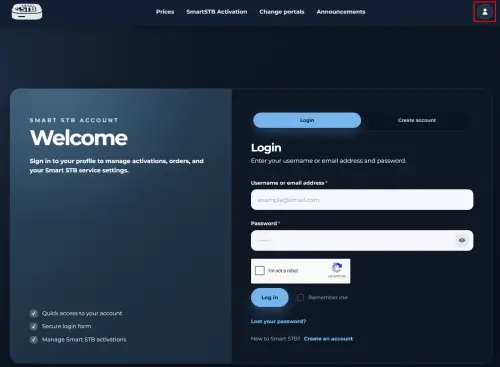
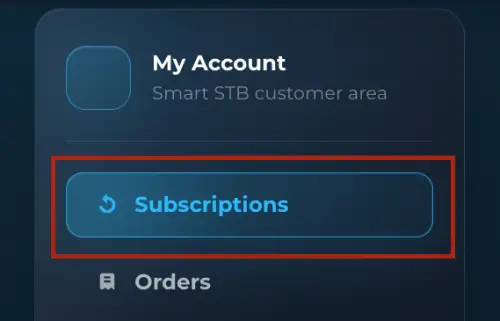
- Open my Subscriptions
- Select the app License you want to upgrade to paid license and click on "View" button.
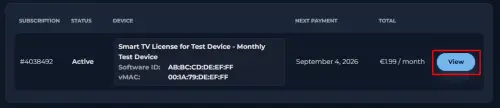
Picture above is an example, and not a real device
- Click on the license plan that you want (Annualy Lite/Annualy/Lifetime Lite/Lifetime button) and follow the on-screen instructions (varies by region).
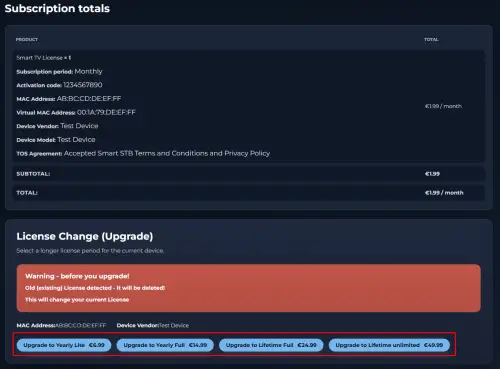
Picture above is an example, and not a real device
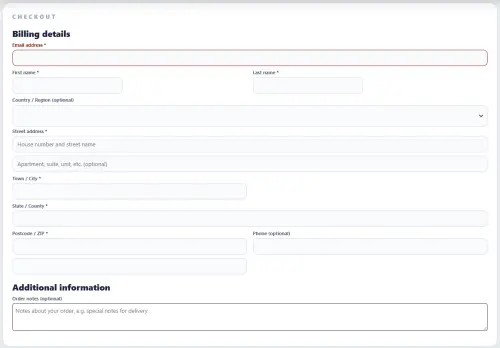
Instructions for update license are showed in the pictures below. Please follow the instructions to upgrade your license.
- Enter billing address information
- Choose the license, you want to purchase
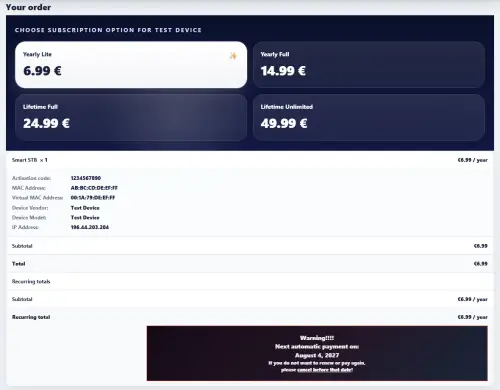
Picture above is an example, and not a real device
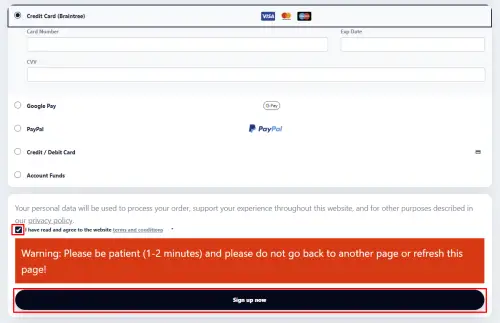
- Choose payment method, agree with the Terms and conditions and click on "Sign up now" button.
You can choose between Credit Card (Braintree), PayPal, Google Pay and Apple Pay.
If you want to use Google Pay or Apple Pay, please make sure that you have added a valid payment method in Google Pay/Apple Pay.
If you purchase the license from your PC and want to use Apple Pay then you need to use Safari browser on macOS.
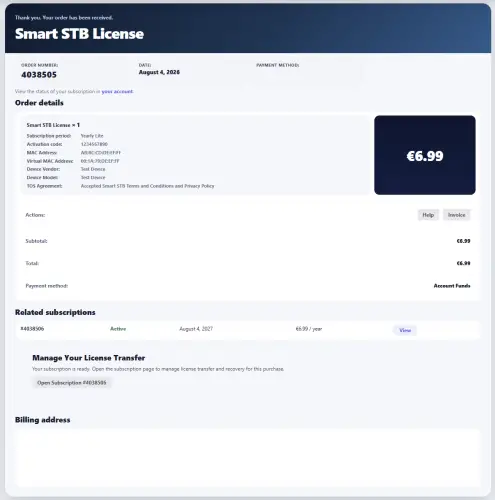
- If everything is correct you will recieve this picture below. If you see it then you are transfered your license successful.
Picture below is an example, and not a real device