
Black screen after “Loading Portal” on some Portals

[et_pb_section fb_built=”1″ _builder_version=”4.17.1″ _module_preset=”default” global_colors_info=”{}”][et_pb_row _builder_version=”4.17.3″ _module_preset=”default”][et_pb_column _builder_version=”4.17.3″ _module_preset=”default” type=”4_4″][et_pb_text _builder_version=”4.17.3″ _module_preset=”default” hover_enabled=”0″ sticky_enabled=”0″]

Smart STB gets black (white/grey) screen after “Loading Portal”?

Sometimes you may get white screen, grey screen, etc.

(Depending on the TV and OS)

[/et_pb_text][et_pb_image src=”https://www.smart-stb.net/wp-content/uploads/2022/05/2.png” _builder_version=”4.17.3″ _module_preset=”default” title_text=”2″ hover_enabled=”0″ sticky_enabled=”0″][/et_pb_image][et_pb_text _builder_version=”4.17.3″ _module_preset=”default” hover_enabled=”0″ sticky_enabled=”0″]

Possible reasons:

    • Sometimes Portal redirect will cause this due to limitations of some Smart TV platforms. We recommend putting in the direct URL to the Portal.

Correct Portal URL are like

http://some-provider.tld/stalker_portal/c/index.html

http://box.some-provider.tld/c/index.html

Wrong Portal URL looks like

http://box.some-provider.tld

http://stb.some-provider.tld

http://mag.box.some-provider.tld

that redirects to

http://some-provider.tld/stalker_portal/c/index.html

    • If you are using other emulator like STBEmu to access the same Portal with the same Virtual MAC address then it’s most likely that Provider has detected a conflict (a cloned device) and will block access or lock it only to the first device that logged in.

Providers may also block your account and face the same issue if someone else has tried to use your Virtual MAC by bruteforcing your Provider’s system and found out that the combination of your Virtual MAC is valid for their portal, but your provider’s system automatically blocks such attemps and marks your Virtual MAC as blocked.

The solution for this problem is ask your Provider to DELETE your account from their Portal System. Not Disable, but completely DELETE it. Along with the Virtual MAC address. After that ask them to RECREATE your account. And make sure you login ONLY with Smart STB. If you want to use the Portals with other apps at the same time make sure you have a separate account for this. Going into the Portal from many devices with same Virtual MAC will cause problems!

Please do check if the Demo (Embedded) Portal loads fine on your TV, if you also experience issues with our Demo portal, please open a ticket so we can check the situation further and help you.

[/et_pb_text][/et_pb_column][/et_pb_row][/et_pb_section]
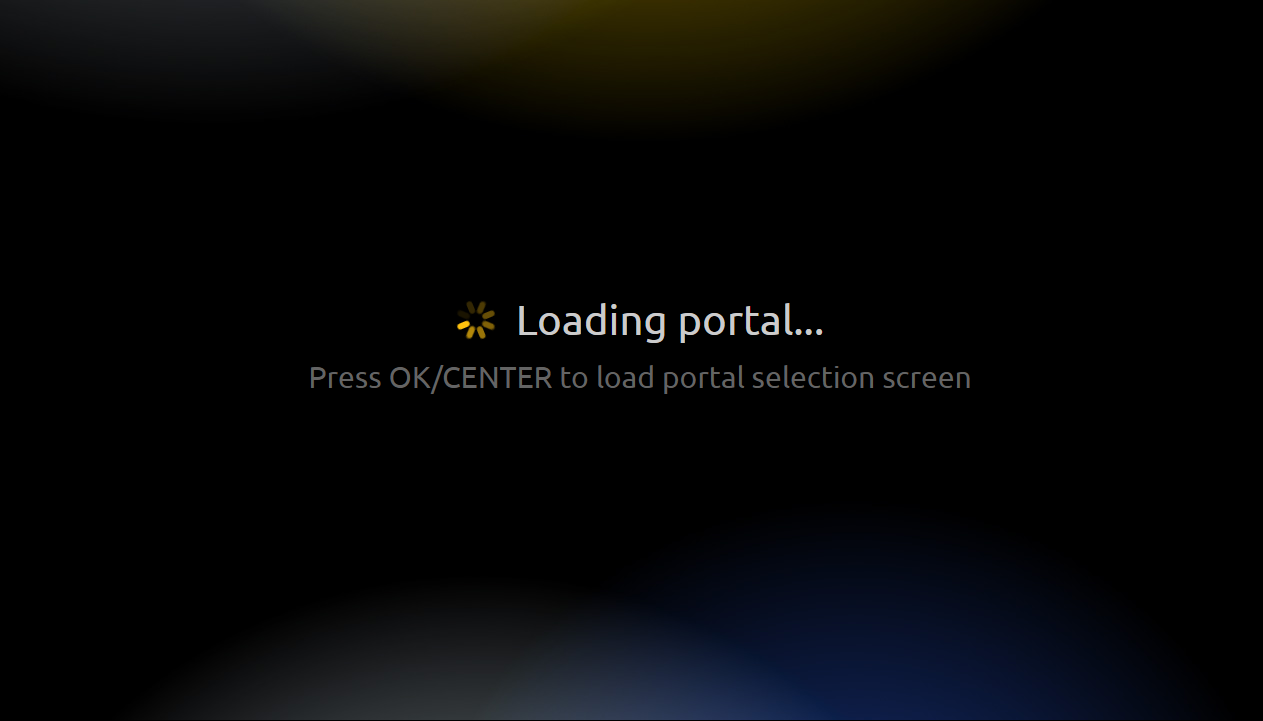
App gets stuck on Loading Portal screen

[et_pb_section fb_built=”1″ theme_builder_area=”post_content” _builder_version=”4.17.1″ _module_preset=”default”][et_pb_row _builder_version=”4.17.1″ _module_preset=”default” theme_builder_area=”post_content”][et_pb_column _builder_version=”4.17.1″ _module_preset=”default” type=”4_4″ theme_builder_area=”post_content”][et_pb_code _builder_version=”4.17.1″ _module_preset=”default” theme_builder_area=”post_content” hover_enabled=”0″ sticky_enabled=”0″]

Stuck on Loading portal… screen?

There are many reasons for this to happen.

Most popular ones:


  • Your IPTV Provider is experiencing technical difficulties.
  • You have bad Network/Internet connection to this Portal at this time (other Portals may work well)
  • You are using a proxy or a VPN service that may not be working correctly at the moment.

We recommend you to use the app via Wired (Cable) connection from router to the TV and NOT via WiFi or any 3G/4G modems or routers.

Please check your network or contact your IPTV provider

We do not offer or operate IPTV access, channels or providers.

[/et_pb_code][/et_pb_column][/et_pb_row][/et_pb_section]

How to find out my Software ID

[et_pb_section fb_built=”1″ _builder_version=”4.17.1″ _module_preset=”default” global_colors_info=”{}”][et_pb_row _builder_version=”4.17.3″ _module_preset=”default”][et_pb_column _builder_version=”4.17.3″ _module_preset=”default” type=”4_4″][et_pb_text _builder_version=”4.17.3″ _module_preset=”default” hover_enabled=”0″ sticky_enabled=”0″]

If you want to find out your Software ID in order to purchase a license, manage already purchased licenses or you have been asked by our support to provide the Software ID you can follow this article which will guide you through the steps to find the Software ID of your app.

First you should pen the app on your device. You will see the following message after a few seconds:

[/et_pb_text][et_pb_image src=”https://www.smart-stb.net/wp-content/uploads/2022/05/1.png” _builder_version=”4.17.3″ _module_preset=”default” title_text=”1″ hover_enabled=”0″ sticky_enabled=”0″][/et_pb_image][et_pb_text _builder_version=”4.17.3″ _module_preset=”default” hover_enabled=”0″ sticky_enabled=”0″]

When you see the disclaimer message you can click the “OK” button on your remote ot tap on your screen if your device is touch-capable to skip that section or alternatively you can wait around 10 seconds to be redirected to the next screen:

[/et_pb_text][et_pb_image src=”https://www.smart-stb.net/wp-content/uploads/2022/05/4.png” _builder_version=”4.17.3″ _module_preset=”default” title_text=”4″ hover_enabled=”0″ sticky_enabled=”0″][/et_pb_image][et_pb_text _builder_version=”4.17.3″ _module_preset=”default” hover_enabled=”0″ sticky_enabled=”0″]

When you see this screen you should press “OK/Center” button or tap anywhere on the screen if you are with touch-capable device so you can see the Portal menu where you can also find the app Settings:

[/et_pb_text][et_pb_image src=”https://www.smart-stb.net/wp-content/uploads/2022/05/5.png” _builder_version=”4.17.3″ _module_preset=”default” title_text=”5″ hover_enabled=”0″ sticky_enabled=”0″][/et_pb_image][et_pb_text _builder_version=”4.17.3″ _module_preset=”default” hover_enabled=”0″ sticky_enabled=”0″]

This is the main portal menu where you can see the portals you have and open the app Settings. In order to see your Virtual MAC you should navigate to “System settings”:

[/et_pb_text][et_pb_image src=”https://www.smart-stb.net/wp-content/uploads/2022/05/Device_INFO_.png” _builder_version=”4.17.3″ _module_preset=”default” title_text=”Device_INFO_” hover_enabled=”0″ sticky_enabled=”0″][/et_pb_image][et_pb_text _builder_version=”4.17.3″ _module_preset=”default” hover_enabled=”0″ sticky_enabled=”0″]

The System settings menu will open where you can find more information about the app and do some further and additional settings. You should then nagivate to the “Device info” menu and the following information will appear:

[/et_pb_text][et_pb_image src=”https://www.smart-stb.net/wp-content/uploads/2022/05/7.png” _builder_version=”4.17.3″ _module_preset=”default” title_text=”7″ hover_enabled=”0″ sticky_enabled=”0″][/et_pb_image][et_pb_text _builder_version=”4.17.3″ _module_preset=”default” hover_enabled=”0″ sticky_enabled=”0″]

(Example device, information on above picture is for demonstration purposes, please do NOT enter this on our app and site!)

In the middle of the screen you can find your Software ID address which can be used to to purchase a license, manage already purchased licenses or you have been asked by our support to provide the Software ID.


Please note that your Software ID is ONLY used for the app licensing, you DON’T have to give it to your provider unless you want your provider to handle your app subscription/license also. Your 3rd party IPTVprovider will need your Virtual MAC in order to activate and manage your TV subscription from the 3rd party IPTV provider, which is also present on the “Device info” menu as shown above

[/et_pb_text][/et_pb_column][/et_pb_row][/et_pb_section]

Oops, this can not be played now, more info: smart-stb.tv/np

[et_pb_section fb_built=”1″ _builder_version=”4.17.1″ _module_preset=”default” global_colors_info=”{}”][et_pb_row _builder_version=”4.17.3″ _module_preset=”default” hover_enabled=”0″ global_colors_info=”{}” sticky_enabled=”0″][et_pb_column type=”4_4″ _builder_version=”4.17.3″ _module_preset=”default” global_colors_info=”{}”][et_pb_text _builder_version=”4.17.3″ _module_preset=”default” hover_enabled=”0″ global_colors_info=”{}” sticky_enabled=”0″]

Error: Oops, this can not be played now, more info: smart-stb.tv/np

[/et_pb_text][et_pb_image src=”https://www.smart-stb.net/wp-content/uploads/2022/05/1-1.png” title_text=”1 (1)” _builder_version=”4.17.3″ _module_preset=”default” global_colors_info=”{}”][/et_pb_image][et_pb_text _builder_version=”4.18.0″ _module_preset=”default” hover_enabled=”0″ global_colors_info=”{}” sticky_enabled=”0″]

If you get this message when zapping channels it’s most likely

  • This channel is not working at the moment – sometimes it’s possible for some channels not to work and others to work – please contact your IPTV Provider (where you got the Portal URL from)
  • If all channels give out this message, either your IPTV Provider is having problems -or- they are blocking the app. Ask your IPTV Provider to visit smart-stb.tv/unblock for more info and help in unblocking the app.
  • Some providers upgrade their panels with new versions that block the Smart STB app – this is NOT an app problem. We have no control over Portals.
  • Restricted, slow, unstable or unreliable connection between your TV and the IPTV streaming service. Please note – all connections to any streaming services are provided by your Provider and are directly accessed from your TV.  We do not monitor, proxy or control any streaming traffic.

For best app and streaming stability, please connect your TV to the Internet via Wired (LAN/Cable) connection directly to your Internet router. If possible please avoid WiFi, 3G/4G/5G modems, Powerline adapters, sattelite Internet (Starlink works fine) and etc.

We have no control over any streaming service, the TV app always connects directly to any streaming links it receives, we do not proxy any streaming traffic.

[/et_pb_text][/et_pb_column][/et_pb_row][/et_pb_section]

How to find out my Virtual MAC address

[et_pb_section fb_built=”1″ _builder_version=”4.17.1″ _module_preset=”default” global_colors_info=”{}”][et_pb_row _builder_version=”4.17.3″ _module_preset=”default” global_colors_info=”{}”][et_pb_column type=”4_4″ _builder_version=”4.17.3″ _module_preset=”default” global_colors_info=”{}”][et_pb_text _builder_version=”4.17.3″ _module_preset=”default” global_colors_info=”{}”]

Please note that you may have to provide your 3rd party IPTV provider some additional information like your Virtual MAC in order the provider to activate your subscription on their side, otherwise you may face the “STB Blocked” message. In this case you should provide your Virtual MAC, which can be found in “Device info” menu from the app Systm Settings. This article will show you the steps how to find your Virtual MAC.

Open the app on your device. You will see the following message after a few seconds:</p>

[/et_pb_text][et_pb_image src=”https://www.smart-stb.net/wp-content/uploads/2022/05/1.png” title_text=”1″ _builder_version=”4.17.3″ _module_preset=”default” global_colors_info=”{}”][/et_pb_image][et_pb_text _builder_version=”4.17.3″ _module_preset=”default” global_colors_info=”{}”]

When you see the disclaimer message you can click the “OK” button on your remote ot tap on your screen if your device is touch-capable to skip that section or alternatively you can wait around 10 seconds to be redirected to the next screen:

[/et_pb_text][et_pb_image src=”https://www.smart-stb.net/wp-content/uploads/2022/05/4.png” title_text=”4″ _builder_version=”4.17.3″ _module_preset=”default” global_colors_info=”{}”][/et_pb_image][et_pb_text _builder_version=”4.17.3″ _module_preset=”default” global_colors_info=”{}”]

When you see this screen you should press “OK/Center” button or tap anywhere on the screen if you are with touch-capable device so you can see the Portal menu where you can also find the app Settings:

[/et_pb_text][et_pb_image src=”https://www.smart-stb.net/wp-content/uploads/2022/05/5.png” title_text=”5″ _builder_version=”4.17.3″ _module_preset=”default” global_colors_info=”{}”][/et_pb_image][et_pb_text _builder_version=”4.17.3″ _module_preset=”default” global_colors_info=”{}”]

This is the main portal menu where you can see the portals you have and open the app Settings. In order to see your Virtual MAC you should navigate to “System settings”:

[/et_pb_text][et_pb_image src=”https://www.smart-stb.net/wp-content/uploads/2022/05/Device_INFO_.png” title_text=”Device_INFO_” _builder_version=”4.17.3″ _module_preset=”default” global_colors_info=”{}”][/et_pb_image][et_pb_text _builder_version=”4.17.3″ _module_preset=”default” global_colors_info=”{}”]

The System settings menu will open where you can find more information about the app and do some further and additional settings. You should then nagivate to the “Device info” menu and the following information will appear:

[/et_pb_text][et_pb_image src=”https://www.smart-stb.net/wp-content/uploads/2022/05/7.png” title_text=”7″ _builder_version=”4.17.3″ _module_preset=”default” global_colors_info=”{}”][/et_pb_image][et_pb_text _builder_version=”4.17.3″ _module_preset=”default” hover_enabled=”0″ global_colors_info=”{}” sticky_enabled=”0″]

(Example device, information on above picture is for demonstration purposes, please do NOT enter this on our app and site!)

In the middle of the screen you can find your Virtual MAC address which you should give to your 3rd party IPTV provider to activate your TV subscription on their side.


Please note that Virtual MAC is only used by IPTV providers to manage your subscription with them, you only need it for your 3rd party IPTV provider, if you want to manage the app licensing you should ONLY use your Software ID which can also be found on the screen showed above!

[/et_pb_text][/et_pb_column][/et_pb_row][/et_pb_section]

Your STB is blocked. Call the provider.

[et_pb_section fb_built=”1″ _builder_version=”4.17.1″ _module_preset=”default” global_colors_info=”{}”][et_pb_row _builder_version=”4.17.1″ _module_preset=”default” global_colors_info=”{}”][et_pb_column type=”4_4″ _builder_version=”4.17.1″ _module_preset=”default” global_colors_info=”{}”][et_pb_text _builder_version=”4.17.1″ _module_preset=”default” global_colors_info=”{}”]

If you get message like:

Your STB is blocked.
Call the provider.

[/et_pb_text][et_pb_image src=”https://www.smart-stb.net/wp-content/uploads/2022/04/stb-blocked-1.png” title_text=”stb blocked 1″ _builder_version=”4.17.1″ _module_preset=”default” hover_enabled=”0″ global_colors_info=”{}” sticky_enabled=”0″][/et_pb_image][/et_pb_column][/et_pb_row][et_pb_row _builder_version=”4.17.1″ _module_preset=”default” global_colors_info=”{}”][et_pb_column type=”4_4″ _builder_version=”4.17.1″ _module_preset=”default” global_colors_info=”{}”][et_pb_text _builder_version=”4.17.1″ _module_preset=”default” global_colors_info=”{}”]

You do not have a subscription to this service provider!
Please contact your IPTV/OTT operator to solve this issue!

[/et_pb_text][et_pb_image src=”https://www.smart-stb.net/wp-content/uploads/2022/04/stb-blocked-2.png” title_text=”stb blocked 2″ _builder_version=”4.17.1″ _module_preset=”default” global_colors_info=”{}”][/et_pb_image][/et_pb_column][/et_pb_row][et_pb_row _builder_version=”4.17.1″ _module_preset=”default” global_colors_info=”{}”][et_pb_column type=”4_4″ _builder_version=”4.17.1″ _module_preset=”default” global_colors_info=”{}”][et_pb_text _builder_version=”4.17.3″ _module_preset=”default” hover_enabled=”0″ global_colors_info=”{}” sticky_enabled=”0″]

This means that your device is blocked by the IPTV provider (this smart TV is not allowed on this portal) 

The message means access to this Portal is not allowed for your TV

We cannot know why your provider blocked or did not allow your access to the Portal you have set but here are possible reasons:


  • First time on the Portal? Provider may have not allowed your TV to use their service, yet. Provider needs to activate access for your app’s Virtual MAC. Shown in RED at the bottom right of the screen.
  • In many cases this is default message when your TV is not allowed to use the Portal you have set. How to change the Portal.
  • Your Virtual MAC changed. 
  • Your Provider has country lock. More info on country lock below.
  • TV is blocked by the Provider of the Portal you have set. Example: due to late/non-payment or abuse.
  • Some Providers may block your Virtual MAC if you (or someone else) uses your Virtual MAC in another app, like STB EMU. 

We have no way of knowing why Provider does block your TV from using the Portal.  Please ask your Provider for help.
We can not unblock your access – any support tickets with such requests will be ignored.


Provider access is not in our control.

It’s best to ask your provider for help and give them the Virtual MAC so they can activate service on their Portals.

In case of country-lock, ask your Provider to set country according to below regions:

USA, Mexico + North America (except Canada) = USA
South America = Brazil
Canada = Canada
Germany = Germany
Italy = Italy
Luxemburg and Russia = Luxemburg
Spain = Spain
Ukraine = Ukraine
Romania = Romania 
Bulgaria, Turkey, Greece = Bulgaria
Oceania area = Australia
Asia-Pacific area = Singapore
South Africa + Lesotho = South Africa
Rest of the world = Germany

We do not offer or operate IPTV access, channels or providers.

[/et_pb_text][/et_pb_column][/et_pb_row][/et_pb_section]